
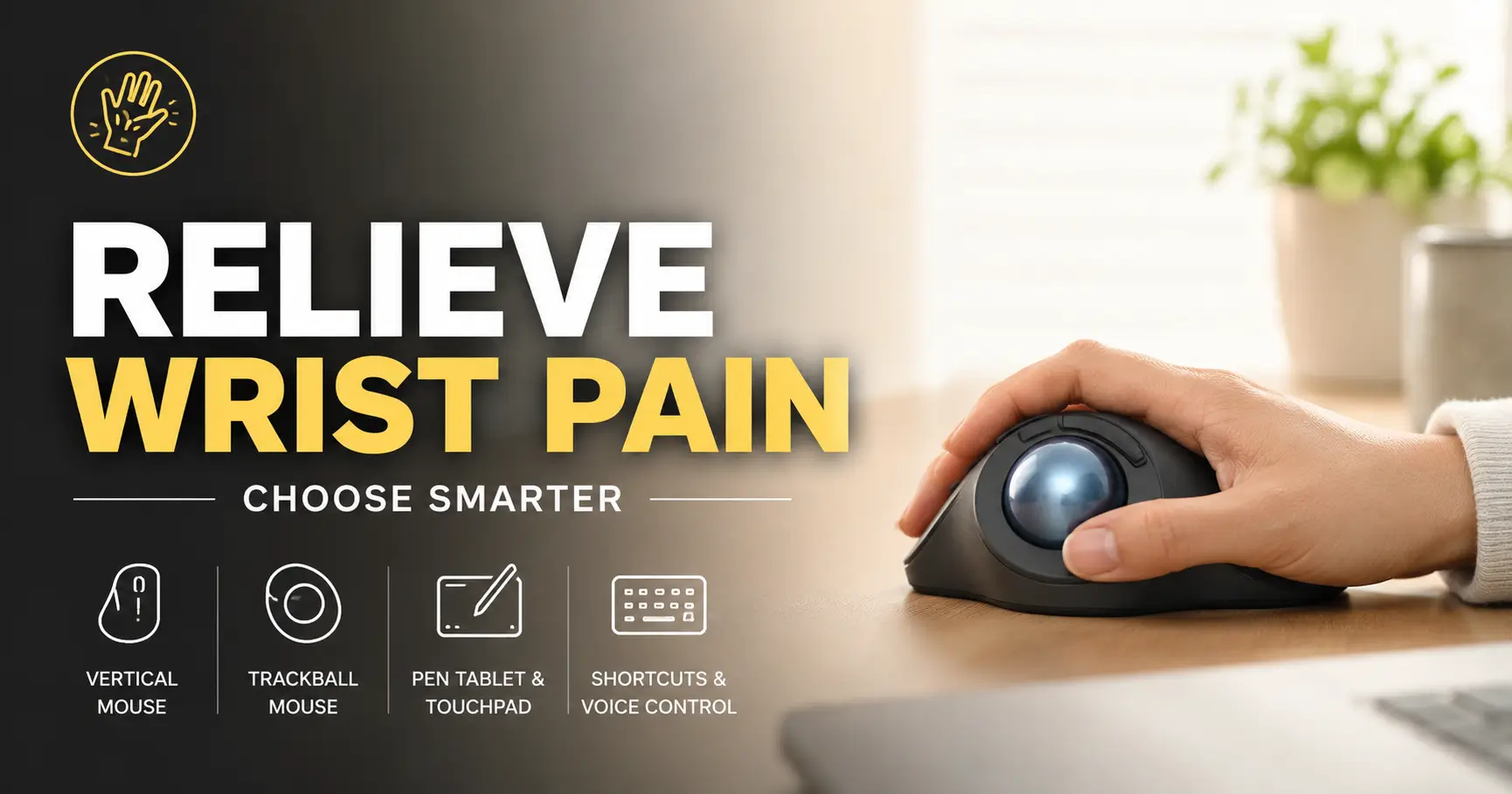
Ergonomic buying guide
Mouse Alternatives for Wrist Pain
Choose by Pain Pattern, Not Product Hype
Wrist pain from computer work rarely arrives with thunder. More often, it appears like a quiet receipt under the door: one more scroll, one more drag, one more tense click after a long day of email, spreadsheets, design files, games, and browser tabs breeding in the corner.
A better mouse can help some people, but “ergonomic” is not a magic sticker. The best mouse alternative for wrist pain depends on which movement irritates you most: twisting the forearm flat, reaching across the desk, gripping too hard, scrolling with the thumb, or clicking thousands of times a day.
This guide helps you compare vertical mice, trackballs, pen tablets, touchpads, keyboard shortcuts, and voice control without turning your desk into a gadget museum. The goal is simple: reduce strain, avoid wasted money, and know when wrist pain needs more than a new device.
Match the motion
Pick an alternative based on what hurts, not what looks most futuristic.
Compare without panic
Understand tradeoffs before paying for premium ergonomic gear.
Test for seven days
Use a simple experiment to judge comfort, speed, and fatigue.
Best first move: identify the painful movement before you buy the replacement. Your wrist is giving feedback, not a product review. 🖱️
Snapshot
This article is for office workers, remote workers, laptop-heavy professionals, designers, gamers, and anyone comparing ergonomic mouse alternatives for wrist pain. You will learn how to choose a device by pain pattern, compare budget and premium options, avoid common setup mistakes, and run a low-risk seven-day test before spending more.
Table of Contents
Before You Buy: What This Guide Can and Cannot Do
Wrist pain deserves a little respect. A mouse alternative can reduce irritating movements, but it cannot diagnose the cause of pain, numbness, weakness, swelling, or tingling. Hardware is a tool, not a tiny plastic doctor.
This guide is meant to help you compare ergonomic input options, adjust your workstation, and decide what to test first. It is not a substitute for medical advice, physical therapy, occupational therapy, or an evaluation from a qualified clinician.
Before you act
Consider professional help if wrist pain is sharp, sudden, spreading, linked with numbness or weakness, caused by an injury, or getting worse despite rest and setup changes. A gadget may make work easier, but it should not be used to hide symptoms that need attention.
What a mouse alternative can help with
A different input device may reduce a specific repeated motion. For example, a vertical mouse may reduce the amount of forearm rotation needed to use a mouse. A trackball may reduce shoulder and arm travel. A pen tablet may feel better for precise design work. Keyboard shortcuts may lower total mouse use.
That is the calm center of ergonomic buying: less irritation, not miracle relief.
What a mouse alternative cannot promise
No mouse, trackball, wrist rest, desk pad, keyboard tray, or premium accessory can guarantee pain relief. Wrist pain can involve tendons, nerves, joints, muscles, inflammatory conditions, old injuries, neck or shoulder mechanics, and workload patterns.
If your symptoms include numb fingers, loss of grip, night pain, swelling, or pain that keeps intensifying, treat that as a signal to step beyond shopping mode.
The best buying mindset
Think like a careful tester. Do not start with the most expensive ergonomic mouse. Start with the painful movement, then choose one change that reduces that movement. Your desk should become a quiet workshop, not a warehouse of abandoned ergonomic artifacts.
Why Wrist Pain Starts With Tiny Repetition
Computer-related wrist discomfort often builds through small repeated actions: clicking, scrolling, dragging, gripping, reaching, hovering, and holding the wrist at an awkward angle. None of these movements looks dramatic. That is exactly why people underestimate them.
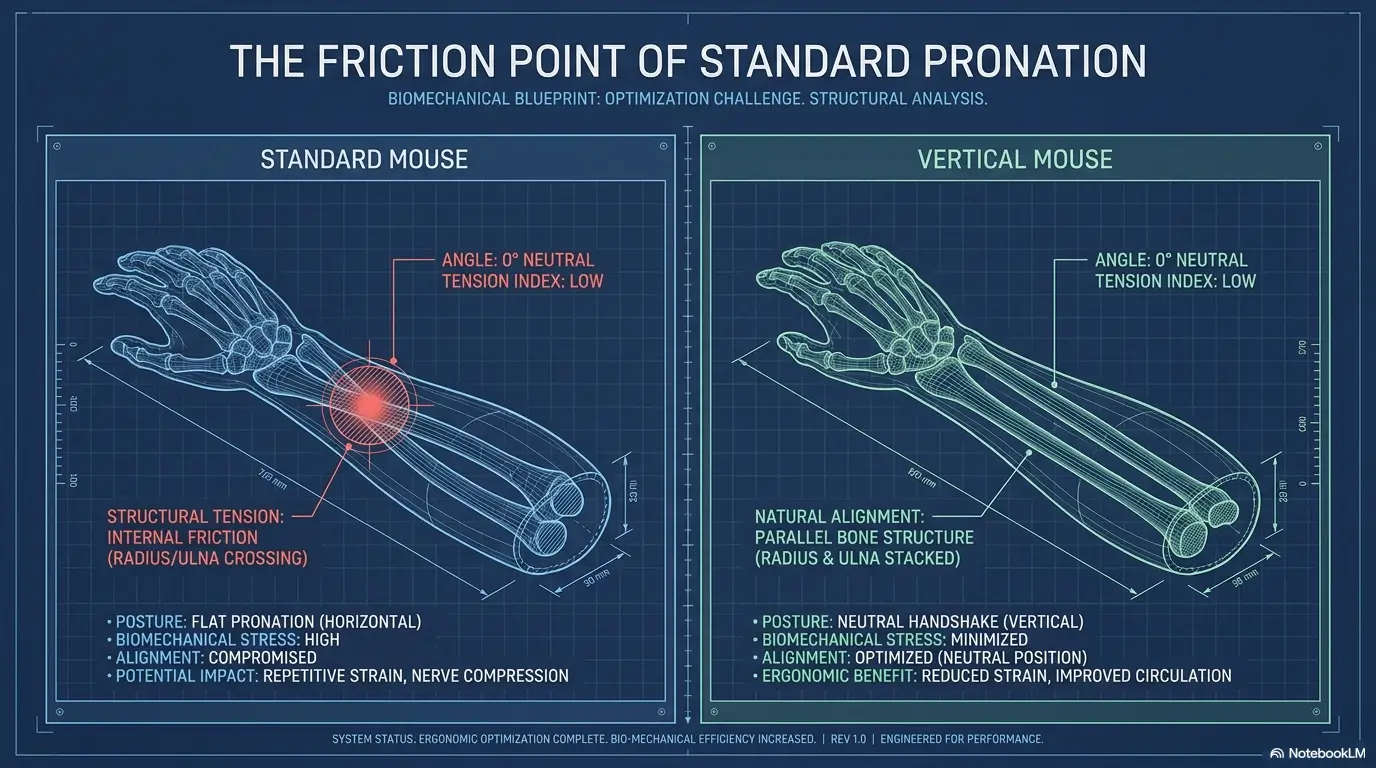
A standard mouse may ask your hand to stay palm-down, your wrist to angle slightly back, your fingers to hover, and your forearm to make thousands of small corrections. Add a laptop keyboard, a low chair, a cramped desk, and a deadline with teeth, and the body starts keeping score.
The hidden cost of small daily movements
One click is nothing. Ten thousand small hand tasks across a workweek can become a weather system. The problem is not always force. It may be repetition, duration, awkward wrist position, lack of breaks, or using one input device all day with no variation.
Remote workers often notice this when their home setup becomes permanent by accident. The “temporary” laptop on the kitchen table grows roots. The wrist begins whispering. Then one Tuesday, it raises its voice.
Why standard mice can encourage extension and gripping
A traditional mouse can encourage wrist extension, which means the wrist bends back slightly. It can also encourage gripping, especially if the mouse is too small, too slippery, too heavy, or placed too far away.
The fix is not always a new device. Sometimes moving the mouse closer, lowering desk height, relaxing the hand, or using more keyboard shortcuts reduces strain before you spend a dollar.
Pain location matters more than brand preference
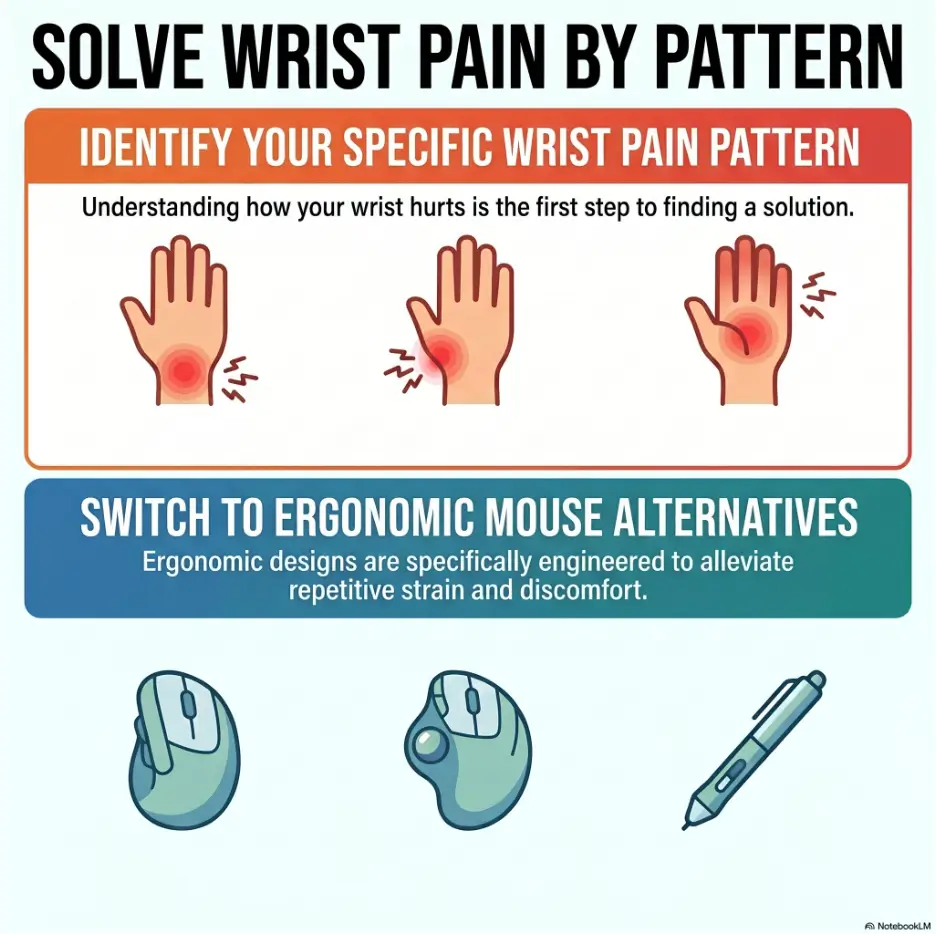
When someone asks, “What is the best mouse alternative for wrist pain?” the better question is, “Which movement makes your wrist complain?” Pain on the thumb side may have different triggers than pain on the pinky side. Forearm tightness may point toward rotation or gripping. Finger fatigue may come from clicking, scrolling, or holding tension.
Key takeaway
Do not shop by “best ergonomic mouse” lists alone. Shop by the motion you need to reduce: twisting, reaching, gripping, clicking, scrolling, or total mouse time.
Choose by Pain Pattern, Not Product Hype
Product pages love certainty. Real bodies prefer nuance. The right mouse alternative for a spreadsheet analyst may irritate a designer. The right trackball for a cramped desk may fatigue a gamer’s thumb. The best tool is the one that reduces your specific strain without creating a fresh problem in another joint.
Pinky-side wrist pain
Pain on the pinky side of the wrist may be irritated by side-to-side wrist movement, awkward desk angle, leaning on the wrist, or repeatedly dragging the mouse across a wide screen setup. A trackball or centered touchpad may help reduce arm travel, but only if it does not force the wrist into a tense position.
Try placing the input device closer to your keyboard and reducing pointer speed so you are not flicking the wrist like a tiny metronome.
Thumb-side pain after scrolling or dragging
Thumb-side pain can flare when the thumb is asked to scroll, steer, pinch, or grip too often. Thumb trackballs may be a poor first choice for some people with thumb irritation. A finger-operated trackball, vertical mouse, pen tablet, or shortcut-heavy workflow may be worth comparing instead.
For gamers, this matters even more. Extra side buttons can be useful, but if every command lives under the thumb, the thumb becomes the overworked intern of the hand.
Forearm tightness from rotating your hand flat
If the forearm feels tight after long mouse use, a vertical mouse may be a good first experiment. Its handshake-style angle may reduce the amount of palm-down rotation required.
That does not mean everyone should buy one. Some users dislike the taller shape, the learning curve, or the feeling of steering from the side. Size matters. Angle matters. Weight matters. Return policies matter too.
When total mouse time is the real problem
Sometimes the device is not the main villain. The workload is. If your wrist hurts after six hours of clicking through email, browser tabs, spreadsheets, and design tools, the best mouse alternative may be a blended system: shortcuts, dictation, touchpad gestures, and a second input device you rotate in.
Key takeaway
If one device hurts after hours of use, replacing it with another single device may not be enough. Variation can be part of the solution.
Best Mouse Alternatives Compared
Here is the practical comparison most buyers need before browsing reviews. Each option solves one problem well and creates at least one tradeoff. That tradeoff is not a flaw. It is the price of changing movement patterns.
| Mouse alternative | Best for | Watch out for | Budget note |
|---|---|---|---|
| Vertical mouse | Forearm twist, palm-down discomfort, traditional mouse fatigue | Taller shape, learning curve, wrong size | Good budget options exist; premium is not always necessary |
| Trackball mouse | Cramped desks, less arm travel, multi-monitor control | Thumb or finger fatigue, cleaning the ball, adjustment time | Mid-range models often offer enough features |
| Pen tablet or stylus | Design, illustration, photo editing, precision work | Hovering tension, desk space, tablet size mismatch | Small or medium tablets are usually enough for many desks |
| Touchpad or trackpad | Gesture-heavy laptop work, centered input, light browsing | Pinch and swipe strain, wrist angle, overuse | May be free if already built into your laptop |
| Keyboard shortcuts | Email, writing, coding, spreadsheets, browser work | Learning time, app differences, habit change | Lowest-cost option with high upside |
| Voice control and dictation | Writing, search, simple commands, resting the hands | Privacy, noise, accuracy, workplace limits | Often built into operating systems |
Good / Better / Best setup thinking
Spending more is not automatically smarter. The real value is whether the setup reduces your most irritating motion and fits your workload.
| Tier | What it may include | Who it fits | Money-saving caution |
|---|---|---|---|
| Good | Closer mouse placement, shortcut list, basic vertical mouse or trackpad use | Budget-conscious workers with mild discomfort | Start here before buying multiple devices |
| Better | Vertical mouse or trackball plus keyboard shortcuts and desk height adjustment | Remote workers and office professionals using a computer all day | Buy one device at a time so you know what helped |
| Best | Two-device rotation, external keyboard, improved monitor height, possible professional ergonomics review | Heavy users, designers, gamers, and people with recurring symptoms | Premium gear is only worth it if it changes the painful pattern |
Short Story: The Expensive Mouse That Did Not Fix the Desk
Maya bought a premium ergonomic mouse after three weeks of wrist ache. It looked serious on her desk, the kind of device that seemed to have opinions about posture.
For two days, it helped. Then the ache returned. Not worse, exactly, but familiar. A little gray cloud parked above the same wrist.
Her problem was not only the mouse. Her chair was too low, the mouse sat too far to the right, and her laptop keyboard forced her shoulders forward. She was reaching all day, then blaming the last object her hand touched.
She moved the mouse closer, raised the laptop, added an external keyboard, and used shortcuts for email triage. The fancy mouse became useful only after the desk stopped arguing with her body.
Vertical Mouse: Best When Forearm Twist Is the Villain
A vertical mouse positions the hand closer to a handshake angle. For some people, this feels gentler because the forearm is not rotated as far palm-down. It can be a strong first option for office workers who feel forearm tightness or discomfort after long standard mouse sessions.
Why the handshake angle can feel gentler
The standard mouse posture asks many users to rotate the forearm inward and flatten the palm. A vertical mouse changes that angle. The hand may feel less twisted, especially during browsing, email, and general office work.
The change is subtle but meaningful. It is not a cure. It is a different posture that may reduce one common irritation point.
Who should try a vertical mouse first
A vertical mouse may be worth trying if you mostly do office work, browsing, spreadsheets, project management, and moderate creative work. It may also suit remote workers who use an external keyboard and have enough desk space to keep the mouse close.
For gamers, a vertical mouse can feel slower or less familiar, especially in fast aim-heavy games. Some people use one for work and keep a regular mouse for short gaming sessions. Device rotation can be more realistic than total conversion.
Buying clues: angle, size, buttons, and weight
- Angle: A steep angle may feel natural to one person and awkward to another.
- Size: A mouse that is too large can make you grip. Too small can make your fingers curl tightly.
- Buttons: Extra buttons help only if they reduce strain rather than overworking the thumb.
- Weight: Heavy mice can feel stable but may require more effort to move.
- Return policy: Comfort is personal. A trial period is not a luxury; it is a useful filter.
Key takeaway
A vertical mouse is often a good first experiment for forearm twist, but do not ignore size. The wrong fit can turn “ergonomic” into “oddly shaped regret.”
Trackball Mouse: Move the Cursor Without Dragging Your Arm
A trackball keeps the device still while your thumb or fingers move the ball. This can reduce arm travel, which is useful for cramped desks, multi-monitor setups, and people who tend to reach too far for the mouse.
Trackballs are not automatically easier on the wrist. They shift the workload. That shift can be brilliant for one person and irritating for another.
Thumb trackball vs finger trackball
A thumb trackball uses the thumb to steer the cursor. It can feel familiar because the hand rests on a mouse-like shell. The tradeoff is obvious: the thumb does a lot.
A finger trackball uses the fingers to move the ball. Some people find this more comfortable, especially if the thumb is already irritated. Others find it less intuitive for precise work. This is why testing matters more than review stars.
Why trackballs can help cramped desks
If your desk is small, a trackball can be a tidy little island. You do not need a large mouse pad or wide sweeping movements. That can help laptop-heavy workers, students, and remote employees working from compact spaces.
It may also help if shoulder movement bothers you. Less arm travel can reduce the need to repeatedly move the whole arm across the desk.
The tradeoff: stillness can also overwork you
Because the device stays still, some users freeze the hand in one position for too long. That stillness can create its own fatigue. The answer is not to abandon the trackball immediately. Try relaxing the hand between actions, lowering pointer speed if you overcorrect, and alternating with keyboard shortcuts.
Buyer checklist
- Can you choose thumb-operated or finger-operated control?
- Does the shape let your wrist stay relaxed?
- Can you adjust pointer speed easily?
- Will the ball be easy to clean?
- Can you return it if your thumb or fingers fatigue quickly?
Pen Tablet, Touchpad, Keyboard Shortcuts, and Voice Control
Not every mouse alternative looks like a mouse. Some of the best options reduce mouse dependence rather than replacing the mouse with one heroic gadget. For designers, writers, analysts, and laptop users, mixing input methods can be more useful than chasing a single perfect device.
Pen tablet for designers and detail work
A pen tablet or stylus can be a better fit for illustration, photo editing, retouching, annotation, and precision design. It lets the hand work in a different pattern from standard mouse dragging.
The common mistake is buying a tablet that is too large for the desk. A large active area can force bigger shoulder and arm movements than expected. For many users, a small or medium tablet is easier to manage, especially beside a keyboard.
Touchpad and trackpad: helpful, but not always softer
A touchpad can reduce gripping and allow gestures such as tapping, swiping, and scrolling. It can work well when centered in front of the body, especially for light browsing and laptop tasks.
Still, gestures can irritate some wrists and fingers. Pinching, two-finger scrolling, and repeated swiping may become their own strain pattern. Use a light touch, keep the wrist neutral, and avoid pressing down hard as if the trackpad owes you money.
Keyboard shortcuts are the cheapest mouse alternative
The cheapest mouse alternative is less mouse. Shortcuts can reduce repetitive pointing, especially in browsers, email, writing apps, spreadsheets, and code editors.
- Browser: switch tabs, open a new tab, close a tab, jump to the address bar.
- Email: archive, search, reply, move between messages.
- Documents: copy, paste, find, bold, save, undo.
- Spreadsheets: move across cells, select ranges, fill down, jump to edges.
Start with five shortcuts you use daily. Five remembered shortcuts beat fifty printed shortcuts slowly curling under your monitor.
Voice control and dictation when hands need a break
Voice control can help with writing, search, simple navigation, and command-based work. Dictation can be especially useful for writers, students, consultants, and anyone producing long text.
The limits are real: shared offices, privacy, accuracy, accents, background noise, and the awkwardness of saying punctuation aloud while your coffee cools. Still, even partial voice use can give the hands meaningful rest.
Desk Setup Mistakes That Can Defeat Any Ergonomic Mouse
A good mouse alternative can still fail if the desk setup keeps forcing awkward posture. This is where many buyers lose money. They switch devices but keep the same reach, same chair height, same laptop angle, and same tense work habits.
Mistake: buying the expensive device first
Premium ergonomic devices can be worthwhile, but buying the most expensive option first can blur the lesson. If your wrist improves, was it the shape, the size, the lighter grip, the novelty, or the fact that you took breaks because the new device felt unfamiliar?
Start with a practical budget and a clear test. If a lower-cost change works, you have saved money and learned something useful.
Mistake: keeping the mouse too far away
A mouse or trackball placed too far from the keyboard encourages reaching. That can involve the wrist, elbow, shoulder, and neck. Keep the input device close enough that your upper arm can stay relaxed.
If you use a full-size keyboard with a number pad and rarely use the number pad, consider whether a more compact keyboard layout would let the mouse sit closer. For a related setup angle, you may find this guide on ergonomic mouse choices for shoulder pain useful.
Mistake: gripping harder because the new shape feels odd
New ergonomic devices often feel strange at first. The trap is gripping harder to control them. That can make the hand more tired, even if the device is technically better aligned.
Give yourself a learning period. Lower pointer speed if needed. Use short sessions. Do not force a full workday on a device your hand has known for only twenty minutes.
Mistake: ignoring keyboard position while blaming the mouse
The keyboard may be part of the wrist pain story. A keyboard that is too high, too far away, or angled awkwardly can keep the wrists extended. Laptop keyboards are especially tricky because the screen and keyboard are joined, which often means either your neck or your hands must compromise.
If laptop work is part of your pain pattern, this related guide on neck pain from laptop work can help you think about the whole workstation, not just the mouse.
Common mistake vs safer alternative
- Buying three devices at once: test one change at a time.
- Using the new device all day immediately: start with short sessions.
- Ignoring desk height: adjust chair, keyboard, and mouse placement together.
- Resting hard on the wrist: support the forearm lightly instead.
- Chasing perfect posture: aim for relaxed variation, not statue mode.
Simple decision flow
1. Name the pain pattern
Twist, reach, grip, click, scroll, or total mouse time.
2. Pick one tool
Vertical mouse, trackball, pen tablet, touchpad, shortcuts, or voice.
3. Fix placement
Keep input close, wrist neutral, shoulders relaxed, and grip light.
4. Test seven days
Track pain, speed, fatigue, and whether symptoms spread or improve.
The Seven-Day Test Before You Spend More
The safest buying strategy is a short experiment. A seven-day test gives your hand enough time to move past first impressions while keeping the trial controlled. It also helps you avoid the classic ergonomic shopping spiral: buy, hope, suffer, buy again.
Day zero: choose one painful movement
Write down the main movement that seems to trigger discomfort. Do not overcomplicate it. Choose one phrase: “scrolling hurts,” “forearm feels twisted,” “thumb gets tired,” “wrist hurts after dragging,” or “my whole hand feels tense after long sessions.”
This becomes your test target.
Days one to three: use short sessions
Use the new input method for short blocks first. Try 30 to 60 minutes, then switch back or take a break. During this phase, focus on light grip, close placement, and avoiding awkward wrist angles.
If symptoms become sharp, spread, or include numbness or weakness, stop the experiment and consider professional guidance.
Days four to seven: compare comfort and work speed
By the second half of the week, you should have a clearer view. You may not be fully adjusted, but you can usually tell whether the device is promising, neutral, or obviously wrong.
| End-of-day question | Why it matters |
|---|---|
| Did wrist pain reduce, increase, or move? | Improvement in one area should not create a new problem elsewhere. |
| Was my grip lighter by the end of the day? | A good device should not require constant clenching. |
| Did my work speed recover? | A learning curve is normal, but severe slowdown may not fit your job. |
| Did my thumb, fingers, shoulder, or neck feel worse? | Mouse alternatives can shift strain rather than remove it. |
| Would I keep using this if nobody praised it online? | Your body’s vote matters more than product mythology. |
Show me the nerdy details
Show me the nerdy details
When comparing mouse alternatives, you are really comparing load distribution. A standard mouse may emphasize forearm rotation, wrist extension, gripping, and arm travel. A vertical mouse changes forearm angle. A trackball reduces device movement but increases thumb or finger steering. A pen tablet changes the movement into pen-like control. Keyboard shortcuts reduce total pointing tasks.
The useful question is not “Which device is ergonomic?” It is “Which tissues and joints get asked to do less work, and which ones get asked to do more?” That question keeps your buying decision grounded.
For a more medical appointment-focused approach to tracking pain, you can also use a simple pain flare trigger log to notice patterns before talking with a clinician.

FAQ
What is the best mouse alternative for wrist pain?
The best mouse alternative depends on the movement that hurts most. A vertical mouse may help with forearm twist, a trackball may reduce arm travel, a pen tablet may suit design work, and keyboard shortcuts may reduce total mouse use. Start by matching the tool to your pain pattern.
Is a vertical mouse better than a regular mouse?
A vertical mouse can be better for some people because it changes the hand angle and may reduce palm-down forearm rotation. It is not better for everyone. Size, weight, grip style, desk height, and daily tasks all affect comfort.
Are trackballs good for wrist pain?
Trackballs can help if moving a mouse across the desk bothers your wrist, shoulder, or arm. They can also create thumb or finger fatigue, depending on the design. A thumb trackball and a finger trackball feel very different, so compare carefully.
Can a touchpad cause wrist pain?
Yes. A touchpad can reduce gripping, but repeated swiping, pinching, tapping, or pressing can irritate some wrists and fingers. A touchpad works best when placed comfortably, used lightly, and mixed with shortcuts.
Is a pen tablet better than a mouse for wrist pain?
A pen tablet may be better for designers, illustrators, photo editors, and people doing precise visual work. It is less ideal for every user. The tablet size, desk space, pen grip, and hovering posture can affect comfort.
Should I use a wrist rest with an ergonomic mouse?
A wrist rest may help some people during pauses, but pressing the wrist hard into a rest while actively mousing can create pressure. Many users do better with light forearm support, relaxed shoulders, and a mouse placed close to the keyboard.
Can keyboard shortcuts really reduce wrist pain?
They can reduce total pointing, clicking, and dragging. Shortcuts are especially useful for email, writing, browser work, spreadsheets, and coding. Start with five daily shortcuts rather than trying to memorize an entire command library.
How long does it take to adjust to a new ergonomic mouse?
Some people adjust in a few days. Others need one to three weeks. A short learning curve is normal, but worsening pain, numbness, weakness, or spreading symptoms are not signs to push through.
When should I see a doctor for wrist pain from computer use?
Consider medical guidance if pain is severe, sudden, persistent, linked with injury, or accompanied by numbness, tingling, weakness, swelling, loss of grip, or symptoms that wake you at night. Also seek help if symptoms worsen despite rest and ergonomic changes.
Your Next 15 Minutes: Make the Smallest Useful Change
Do not begin by ordering three devices and building an ergonomic shrine. Begin with one honest observation.
For the next 15 minutes, open a note and write down the one movement that bothers your wrist most: scrolling, dragging, clicking, gripping, reaching, twisting, or using the mouse for too many hours. Then move your current mouse or input device closer to your keyboard, relax your grip, and choose one alternative to test for a week.
If the pain is mild and clearly tied to long computer sessions, a careful test may tell you a lot. If symptoms are sharp, spreading, numb, weak, swollen, or worsening, step out of shopping mode and ask a qualified professional what should be checked.
The one concrete next step
Pick one low-risk change today: learn five shortcuts, borrow a vertical mouse, test a trackball, center your touchpad, or try dictation for one writing task. The winning setup is not the fanciest one. It is the one your wrist can live with at 4:37 p.m.
Last reviewed: 2026-07