
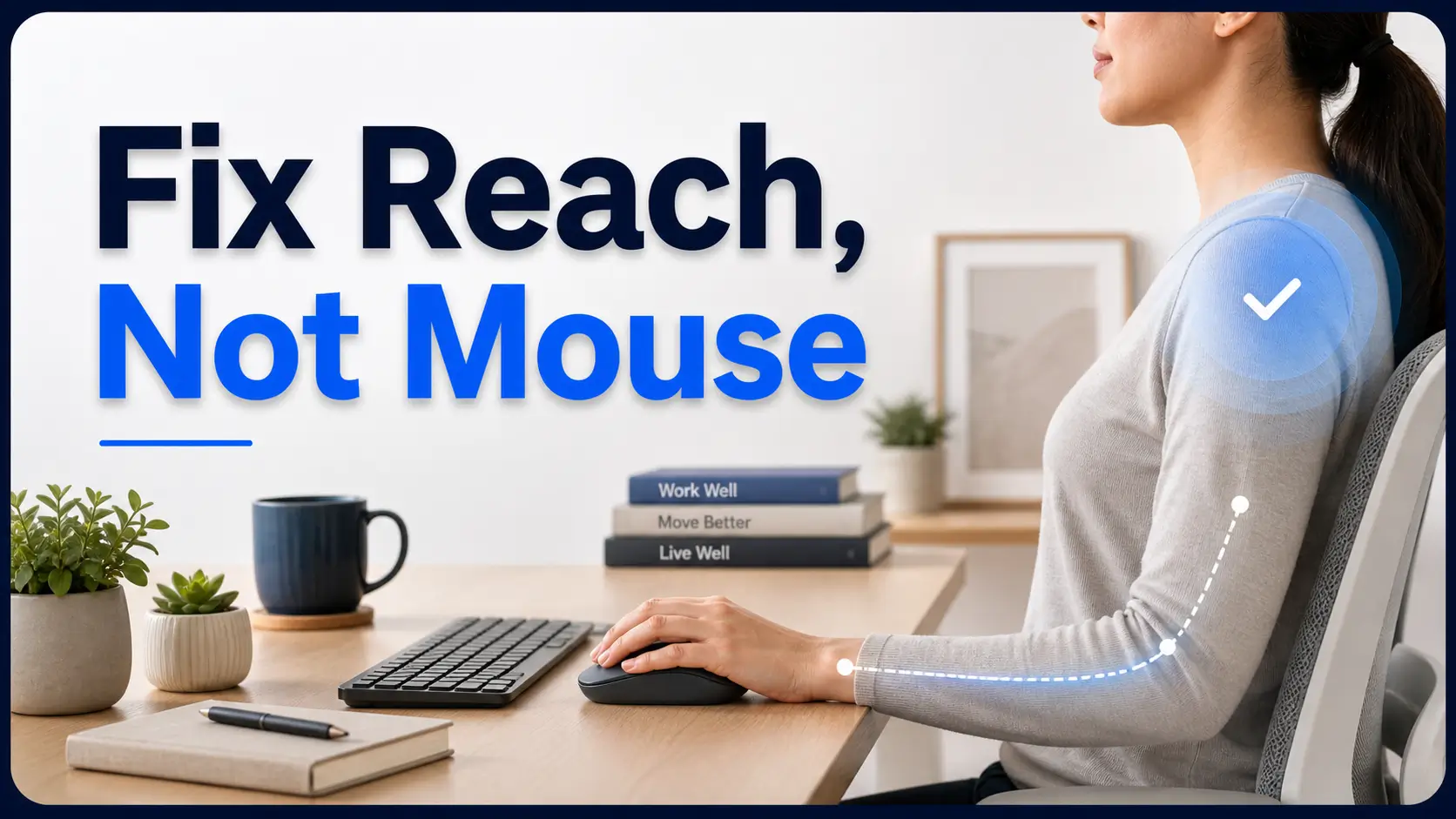
Beyond the Magic Mouse: A System Approach to Shoulder Pain
That fancy ergonomic mouse may not be the hero. If your shoulder aches during computer work, the real culprit is often quieter: a mouse sitting too far away, a full-size keyboard pushing your arm outward, a desk height that keeps your shoulder slightly lifted, or a workday with no reset button.
Orthopedic pain management works best when you stop treating the mouse like a magic object and start treating it as part of a workstation system. The problem is not always “bad posture”—it is repeated reaching, static shoulder tension, and habits that build pain by late afternoon.
This guide helps you match your pain pattern to the movement problem. Test one change at a time before that next midnight product-scroll spiral begins.
- 1. Start with the desk
- 2. Watch the reach
- 3. Respect the red flags
- 4. Decide on the mouse
Table of Contents
Start With the Pain Pattern, Not the Product Page
The first mistake is oddly human: we shop before we investigate. Shoulder pain arrives, we open a product tab, and suddenly a vertical mouse with blue LED trim looks like a physical therapist in a tiny plastic hat.
Slow down. Your shoulder is giving you a pattern before it gives you a purchase order. Does it ache while clicking? During drag-and-drop work? After 2 hours of spreadsheet polishing? When gaming? When reaching to the far right of a full-size keyboard? The answer matters more than the product category.
Map when the shoulder complains: clicking, dragging, reaching, scrolling, or end-of-day fatigue
For one workday, write down the moment the ache appears. Do not make it poetic. Use plain notes: “10:20, shoulder tight after scrolling,” or “3:40, pain worse after editing images.” The more boring the note, the more useful it becomes.
I once helped someone who blamed their mouse for months. The real villain was a second monitor angled so far right that every email required a small owl rotation. The mouse was innocent. Slightly smug, perhaps, but innocent.
Separate shoulder pain from wrist pain before choosing a mouse
A mouse that helps wrist pain is not automatically the best mouse for shoulder pain. Wrist discomfort often points toward hand angle, grip, or pressure. Shoulder discomfort often points toward reach, arm elevation, tension, desk height, or long static posture.
Simple distinction: if the pain feels tied to how your hand holds the device, think mouse shape. If it feels tied to how far your arm travels, think layout first.
The “mouse fixed it” trap that hides a bad desk setup
A new mouse can feel better for 3 days because novelty makes you move differently. Then your old habits creep back in wearing slippers. The shoulder drifts upward. The mouse migrates outward. The keyboard claims the center of the desk like a small empire.
- Track when the ache starts.
- Notice whether reach or grip is the bigger trigger.
- Change one setup variable at a time.
Apply in 60 seconds: Move your mouse closer to your keyboard and note whether your upper arm can stay near your side.
Safety / Disclaimer
This article is for general education and ergonomic decision-making. It is not a diagnosis, treatment plan, or substitute for care from a qualified clinician.
Shoulder pain can come from muscle strain, tendon irritation, rotator cuff problems, arthritis, nerve symptoms, trauma, or pain referred from another area. A better mouse can reduce one source of strain, but it cannot rule out an orthopedic condition.
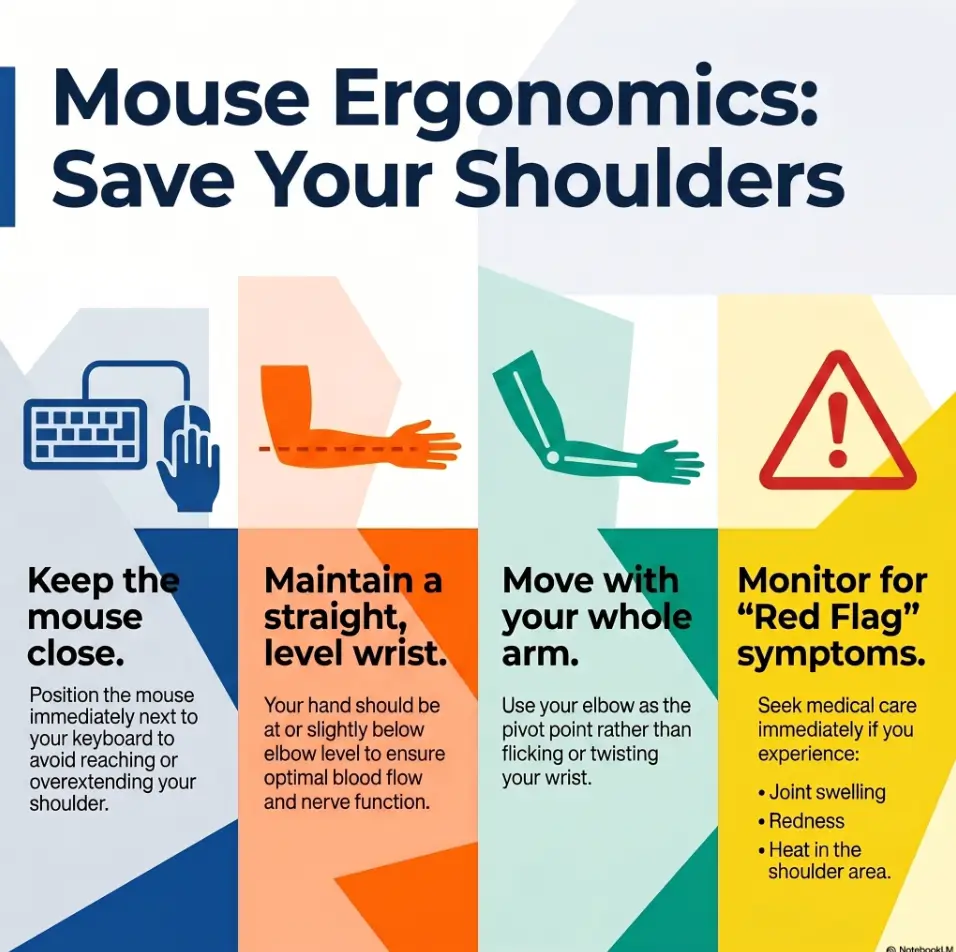
Seek urgent medical care after a fall, accident, or sudden injury if the shoulder looks deformed, swelling appears suddenly, pain is intense, or you cannot move the arm normally. Also take sudden severe arm, shoulder, back, or chest pressure-like pain seriously, especially with shortness of breath, sweating, or chest tightness.
The practical rule: ergonomics is for load management. It is not a magic curtain you pull over severe, spreading, traumatic, or unexplained pain.
Who This Is For, and Who Should Pause Before Buying
This guide is for the desk worker who suspects the mouse is part of the problem but does not want to throw money at the wrong corner of the desk. It is also for remote workers managing orthopedic pain at a home workstation whose “temporary” laptop setup has been temporary since 2021, which is a very long temporary.
Good fit: desk workers with mild shoulder ache linked to long computer sessions
If your shoulder feels mostly fine on weekends but complains during email, editing, CAD work, gaming, design, writing, or spreadsheet sessions, your setup deserves a closer look. That does not mean nothing medical is happening. It means the computer-work pattern is useful evidence.
Good fit: remote workers using a cramped laptop setup
Laptops are wonderful for airports and mildly hostile to shoulders. The screen is attached to the keyboard, the touchpad is narrow, and the whole arrangement often drags your body forward. Add a small table, a dining chair, and 5 video calls, and your shoulder may start writing resignation letters.
Not ideal: injury-related pain, weakness, numbness, or pain that wakes you at night
If pain followed a fall, lifting incident, sudden pull, or sports injury, do not treat a mouse purchase as your first medical opinion. Weakness, numbness, tingling, radiating symptoms, or night pain that keeps returning deserves professional evaluation.
Not enough: when pain continues even away from the computer
If your shoulder hurts while dressing, reaching into a cabinet, driving, sleeping, or lifting light objects, your workstation may be only one chapter. Orthopedic pain management should track function outside the desk, because real life is not lived entirely inside a browser tab.
Eligibility checklist: should you test an ergonomic mouse first?
- Yes: pain is mild to moderate and clearly worse during computer work.
- Yes: you can reproduce discomfort by reaching for the mouse.
- Yes: symptoms improve with rest, breaks, or moving the mouse closer.
- No: pain began after trauma, includes weakness, or wakes you at night.
- No: pain comes with chest pressure, shortness of breath, or sudden severe symptoms.
Neutral action: If you checked any “No” item, prioritize medical guidance before buying another device.
The Shoulder-Reach Problem Hiding in Plain Sight
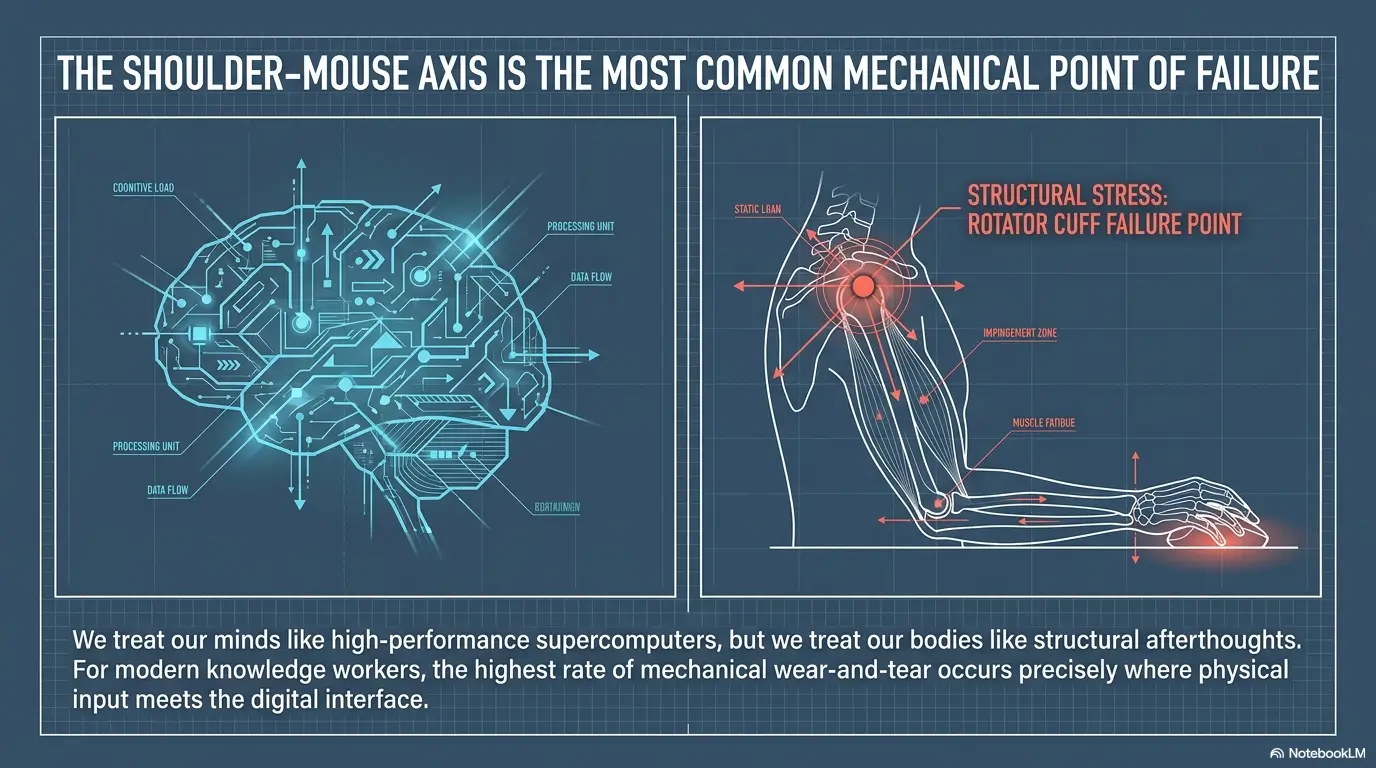
Most people imagine mouse pain beginning in the hand. But for shoulder pain, the drama often starts farther upstream. Your mouse sits 6 inches too far away. Your keyboard has a number pad you rarely use. Your upper arm floats slightly away from your body all day.
That tiny floating posture does not look dramatic. It looks like work. But the shoulder and neck muscles may be quietly holding your arm in place for hours. If your pain pattern includes laptop posture, forward head tension, and upper-back stiffness, it may overlap with neck and shoulder pain from laptop work rather than a mouse-only problem.
Why a mouse placed too far away can quietly load the shoulder
Imagine holding a coffee mug slightly away from your body. At first, nothing happens. After 10 minutes, your shoulder files a complaint. Mouse use works the same way, except the mug is invisible and the meeting is 8 hours long.
Keep the mouse close enough that your upper arm stays near your body
The goal is not military posture. The goal is low-drama positioning: shoulder relaxed, elbow close, upper arm near your side, wrist fairly straight, hand at or slightly below elbow level.
Same surface, same height: why keyboard and mouse placement matter
If your mouse lives higher, lower, or farther away than your keyboard, your shoulder pays a small toll each time you switch devices. One toll is nothing. Hundreds of tolls become a bridge you did not mean to finance.
Let’s be honest: your shoulder may be doing a tiny workout all day
The awkward truth is that many shoulder-friendly mouse fixes are not glamorous. They are desk geography. Bring the mouse closer. Reduce the keyboard width. Lower the shoulder. Stop reaching around a coffee mug, notebook, charger cable, and decorative object that says “focus.”
Ergonomic Mouse Types, Minus the Gadget Fog
Ergonomic mice are not one species. They are a little desk zoo. Some reduce forearm rotation. Some reduce shoulder travel. Some reduce gripping. Some simply feel nice for 48 hours and then reveal their personality flaws.
Vertical mouse: best when forearm rotation and gripping add tension
A vertical mouse places the hand in more of a handshake posture. This may help some users who tense through the wrist and forearm. For shoulder pain, it helps most when it also lets the arm stay close and relaxed. If it is bulky and pushed outward, the shoulder may still grumble.
Trackball mouse: useful when shoulder movement needs to shrink
A trackball can reduce sweeping arm movement because the device stays still while your thumb or fingers move the cursor. This can be helpful for people whose shoulder pain worsens with repeated side-to-side mouse travel.
There is a learning curve. The first hour can feel like writing with a polite potato. Give it a fair test, but do not force it through sharp pain.
Central mouse or roller bar: helpful when reaching to the side is the villain
A central pointing device sits in front of the keyboard, reducing side reach. This can be useful when a full-size keyboard pushes the mouse too far right. These devices often cost more, so they make sense when the reach problem is obvious and persistent.
Lightweight standard mouse: sometimes “less special” is exactly right
Some people do better with a smaller, lighter standard mouse placed close to the keyboard. Fancy is not the same as fit. A mouse can have fewer angles than a Scandinavian lamp and still be the correct choice.
The wrong ergonomic mouse can still hurt if it lives in the wrong place
Device shape matters. Location often matters more. A vertical mouse parked beyond a wide keyboard can still make your shoulder abduct slightly all day. That is the ergonomic version of buying better shoes and walking into the same pothole.
Mouse choice by pain pattern
Reach pain
Try: compact keyboard, central mouse, trackball
Grip tension
Try: larger fit, lighter click, relaxed hand
Forearm twist
Try: vertical mouse, neutral wrist check
Long cursor travel
Try: pointer speed adjustment, trackball
Don’t Buy the Mouse Before Fixing These Three Measurements
Before spending money, check the measurements that make any mouse behave better. This is the part of ergonomic pain management that feels too simple until it works.
Elbow height: hands should not float above the desk like nervous birds
Your hands should generally work around elbow height or slightly below, with shoulders relaxed. If the desk is too high, the shoulders rise. If the chair is too low, the shoulders rise. If both are wrong, your body becomes a shrugging machine with email access.
Mouse distance: closer usually beats fancier
Place the mouse beside the keyboard, not behind it, not beyond a notebook, and not past the kingdom of the number pad. If you must reach forward or outward, the shoulder is doing extra work before the click even happens. For a broader desk-layout lens, compare your setup with keyboard and mouse placement for desk-job pain, because the same small geography mistakes can irritate more than one body region.
Chair support: your shoulder borrows stability from your back
A shoulder does not work alone. If your back is unsupported, your neck and shoulder often stiffen to create false stability. Adjust the chair so your lower back has support and your feet are grounded. A footrest can help if the chair must be raised to match desk height.
Monitor height: forward head posture can turn mouse work into neck-and-shoulder tension
If the monitor is too low, you may creep forward. If it is too high, your neck may tilt. Either way, shoulder tension can increase. Keep the screen in front of you, roughly an arm’s length away, with the top of the screen around eye level or slightly below depending on comfort and lens use. If your laptop screen is pulling your head downward, the tradeoff between a laptop stand and an external monitor may matter more than the mouse itself.
| Measurement | What to look for | Next step |
|---|---|---|
| Elbow height | Hands at or slightly below elbow level | Adjust chair, desk, tray, or foot support |
| Mouse distance | Upper arm stays near the body | Move mouse closer or use a compact keyboard |
| Monitor position | Head balanced, not craning forward | Center screen and adjust height |
Show me the nerdy details
Shoulder discomfort during mouse use often relates to static muscle activity: small muscles working at low intensity for a long time. That can be more fatiguing than one obvious lift because the body gets fewer natural reset moments. Reducing reach distance, lowering shoulder elevation, and improving back support can reduce that static demand.
Common Mistakes That Keep Shoulder Pain Coming Back
Shoulder pain is stubborn because the fix is rarely one heroic change. It is usually 5 small habits behaving like a committee.
Mistake 1: buying a vertical mouse but leaving it six inches too far away
This is the classic plot twist. The hand angle improves, but the shoulder still reaches. The product changed. The workload did not.
Mistake 2: using a full-size keyboard when the number pad forces a long reach
A full-size keyboard can push the mouse farther right, especially for right-handed users. If you rarely use the number pad, a compact keyboard may do more for shoulder reach than a premium mouse.
Mistake 3: gripping the mouse like it owes you money
A tight grip spreads tension upward. The shoulder hears from the fingers, the forearm, the elbow, and eventually the neck. Try resting the hand instead of clamping it. Your mouse has not committed fraud. Probably.
Mistake 4: ignoring the chair because the shoulder is louder
When your chair is too low, too deep, or unsupportive, your arms may compensate. The shoulder becomes scaffolding. That is a job it did not apply for. If you are trying to fix a whole desk ecosystem, the comparison between an ergonomic chair and a standing desk can help you avoid buying the wrong “big solution.”
Mistake 5: treating pain relief like a one-time purchase instead of a daily system
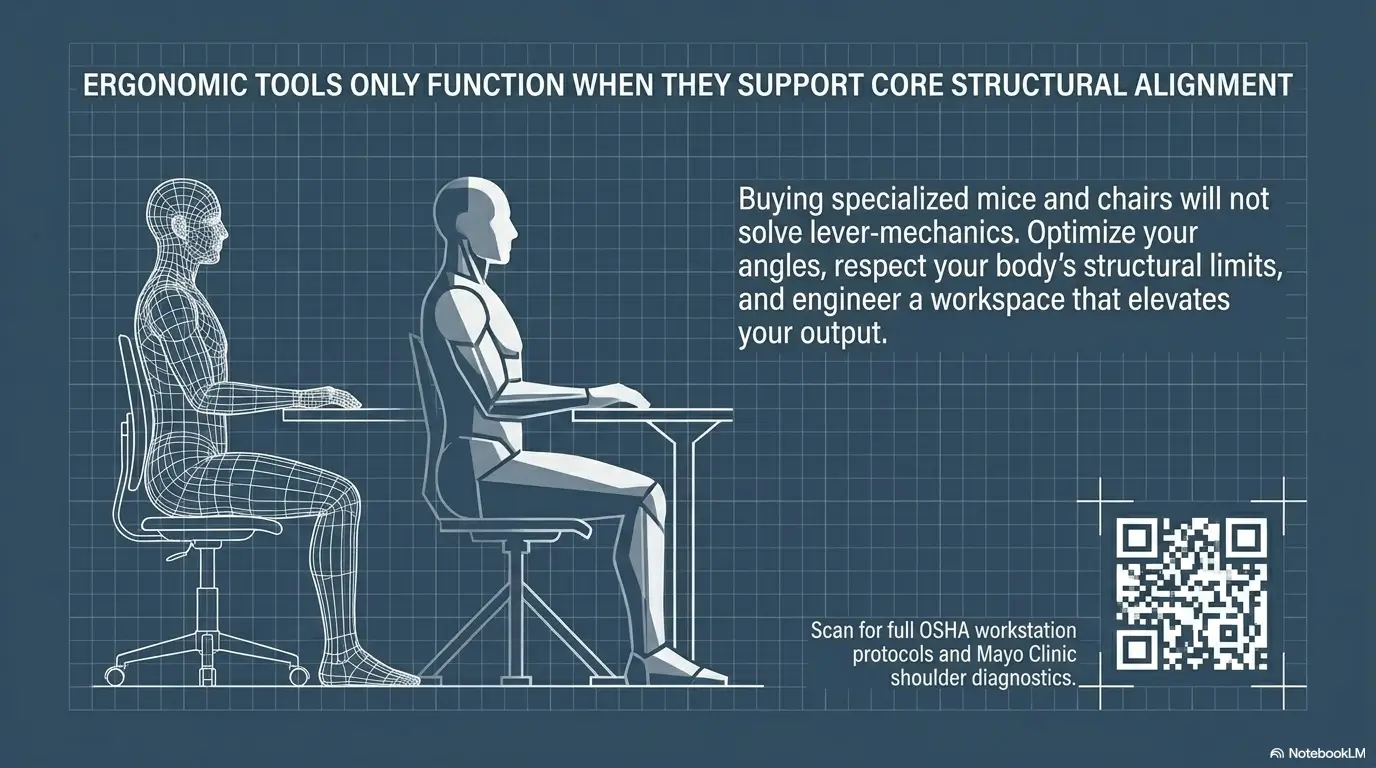
The best ergonomic mouse cannot save a 4-hour editing sprint with no break, no posture variation, and a desk arranged like a yard sale. Pain management is a system: setup, pacing, strength, sleep, symptom tracking, and medical care when needed.
- Check keyboard width before blaming mouse shape.
- Relax grip pressure during normal clicking.
- Fix chair height and back support early.
Apply in 60 seconds: Slide your keyboard slightly left or center it better, then bring the mouse closer.
- OSHA Computer Workstations eTool: Pointer/Mouse Ergonomics
- Mayo Clinic: Office Ergonomics Guide for Keyboard, Mouse, Chair, and Monitor Setup
- Mayo Clinic: Shoulder Pain and When to Seek Medical Care
The “Small Setup” Test Before You Spend More Money
Before buying anything, run one controlled test. Not a lifestyle overhaul. Not a new desk with a name that sounds like a Norwegian fjord. One work block. One variable.
Move the mouse beside the keyboard and retest for one work block
Clear the area beside the keyboard. Place the mouse close enough that your elbow stays near your body. Work for 30 to 60 minutes. Track pain before, during, and after. Use a simple 0 to 10 rating if that helps.
Try a compact keyboard to reduce side reach
If the number pad forces the mouse outward, borrow or test a compact keyboard. You do not need to marry it. Just notice whether the shorter distance changes shoulder tension.
Switch mouse hands briefly, but do not create a second pain problem
Some people benefit from short periods of left-hand mouse use. Treat this as a gentle experiment, not a productivity contest. Your non-dominant hand may initially behave like it was raised by raccoons. That is normal.
Here’s what no one tells you: the cheapest fix may be desk geography
Desk geography includes where the keyboard sits, where the mouse rests, where the monitor pulls your gaze, and what objects force your arm to detour. A $0 cleanup can outperform a $90 device if the original problem was reach.
Mini calculator: is reach your first suspect?
Answer these 3 inputs:
- Is your mouse more than one hand-width away from the keyboard?
- Does your upper arm leave your side to use it?
- Does pain build after 30 to 60 minutes of clicking or scrolling?
Output: If you answered yes to 2 or more, test mouse distance and keyboard width before buying a specialty mouse.
Neutral action: Run one work block with the mouse closer and compare shoulder tension.
Short Story: The Mouse That Wasn’t the Hero
A designer I know bought three mice in 6 weeks: vertical, silent-click, then one shaped like a tiny spaceship. Her shoulder still ached by late afternoon. When we finally looked at the desk, the problem was almost comically plain. Her drawing tablet sat between the keyboard and mouse, so every click required a long diagonal reach.
She moved the tablet to the left, placed a compact keyboard in front of her, and brought the mouse beside it. No fireworks. No heroic transformation montage. Just less reaching. After a week, her shoulder still needed breaks, but the end-of-day ache dropped enough that she stopped shopping at midnight. The winning device was not the spaceship mouse. It was 11 inches of reclaimed desk space.
Pain Management Beyond the Mouse: The Orthopedic Layer
Orthopedic pain management is not only “what object should I buy?” It is how you reduce load, protect function, and avoid turning a small irritation into a daily ritual.
Use activity pacing before pain spikes, not after the shoulder mutinies
Breaks work better before pain becomes loud. Once your shoulder has climbed onto the table and started giving speeches, recovery takes longer. Try a 2-minute reset every 30 to 45 minutes during mouse-heavy work.
Build micro-breaks around task changes, not vague “stretch more” advice
Vague advice evaporates. Pair breaks with events: after a call, after sending a file, after finishing a game match, after editing 10 images. Stand, breathe, drop the shoulders, move gently, and return.
Keep shoulder movement gentle unless a clinician gives a specific plan
Gentle movement may help reduce stiffness, but aggressive stretching through sharp pain is not a badge of maturity. It is just pain with branding. If a clinician gives you exercises, follow that plan. If not, stay conservative.
Track function: reaching, dressing, lifting, sleeping, and driving
Do not track pain only at the desk. Track whether it affects daily tasks. Can you reach a shelf? Put on a jacket? Sleep on that side? Carry groceries? Drive comfortably? Function tells a clearer story than pain numbers alone.
Medication caution: OTC pain relief is not a workstation diagnosis
Over-the-counter pain relievers may help some people, but they can carry risks and interactions. They also cannot tell you why the shoulder hurts. If you find yourself using medication just to tolerate a workstation, that is useful information to bring to a clinician. A broader orthopedic pain management plan should look at load, function, symptom pattern, and safety rather than leaning on one product or pill.
- Notice daily tasks outside computer work.
- Use breaks before the pain spike.
- Do not push sharp shoulder pain to “test toughness.”
Apply in 60 seconds: Write down one non-desk task your shoulder has made harder this week.
When to Seek Help Instead of Tweaking the Desk Again
There is a point where another adjustment becomes procrastination with lumbar support. If symptoms are severe, spreading, traumatic, or function-limiting, get help.
Seek urgent care after trauma with deformity, sudden swelling, intense pain, or inability to move the arm
A fall, accident, or sudden injury changes the decision tree. If the shoulder looks wrong, swells suddenly, hurts intensely, or cannot move normally, do not continue comparing mouse shapes. In that situation, understanding when to choose urgent care vs. an orthopedic clinic can make the next step less foggy.
Call a clinician if shoulder pain persists, worsens, or limits daily tasks
If pain continues despite setup changes, worsens over time, or affects reaching, dressing, lifting, driving, or sleeping, schedule medical evaluation. This is especially important if symptoms last more than a short irritation window or keep returning.
Watch for numbness, weakness, radiating pain, or loss of grip confidence
Numbness, tingling, weakness, radiating pain, or dropping objects may involve nerves or other issues beyond mouse position. That does not mean panic. It means stop treating the desk as the only suspect.
Do not ignore chest pressure, sudden severe shoulder or arm pain, or shortness of breath
Shoulder and arm pain can occasionally overlap with emergency symptoms. Trust the red flags.
A Better Buying Framework for Ergonomic Mice
Once you have tested the setup, buying becomes clearer. You are no longer shopping for a miracle. You are matching a tool to a movement problem.
Choose by movement problem: reach, grip, wrist angle, or clicking load
If reach is the main issue, consider a compact keyboard, trackball, or central pointing device. If wrist angle is the main issue, a vertical mouse may be worth testing. If clicking load matters, look for lighter buttons or alternative input methods.
Match mouse size to hand size, not marketing confidence
A mouse that is too large can make you grip. A mouse that is too small can make you pinch. Either can send tension upstream. Fit should feel boring, not dramatic.
Prioritize return policy over perfect promises
No mouse can guarantee pain relief. A good return window is practical insurance. Test for at least several work blocks, not just 10 delighted minutes after unboxing.
Look for adjustable sensitivity so the shoulder does less traveling
Pointer speed matters. Too slow, and your arm travels more. Too fast, and your hand muscles may work too hard to control the pointer. Adjust until most movement comes from fingers and forearm rather than the whole shoulder.
Avoid “medical-looking” products with no practical fit advantage
Some products look therapeutic because they are gray, chunky, and photographed beside a fern. Ignore the aura. Ask what the device changes: reach, grip, angle, movement, click force, or posture. For larger purchases, the same rule applies to orthopedic home care equipment: buy for the repeated problem, not the product photo.
Decision card: vertical mouse vs trackball vs central mouse
- Vertical mouse: choose when forearm rotation or hand posture seems to drive tension.
- Trackball: choose when shoulder movement and cursor travel are the main triggers.
- Central mouse: choose when side reach is clearly the villain and budget allows testing.
- Compact keyboard first: choose when the number pad pushes the mouse too far away.
Neutral action: Buy only from a seller with a return policy long enough for a 7-day work trial.
The 7-Day Shoulder-Friendly Mouse Trial
A 7-day trial keeps you from making a decision during the honeymoon phase, when every new gadget smells faintly of productivity and cardboard.
Day 1: photograph your current setup before changing anything
Take photos from the front and side. You are looking for mouse distance, shoulder elevation, monitor position, and whether the keyboard pushes the mouse outward.
Day 2: bring the mouse closer and lower shoulder tension
Move the mouse beside the keyboard. Drop the shoulder. Keep the upper arm near your body. Work one normal block and record the difference.
Day 3: reduce reach with keyboard placement or a compact keyboard
If the keyboard is wide, test a narrower layout. Even borrowing one for a day can reveal whether side reach is a major driver.
Day 4: test pointer speed so movement comes from fingers and forearm, not the whole shoulder
Adjust sensitivity gradually. The goal is control without large shoulder movement. Too fast can create tension. Too slow can create travel. Find the least annoying middle.
Day 5: schedule breaks before the ache arrives
Use task-based breaks. After one batch of emails, stand. After one design export, reset. After one gaming match, release your shoulder from its tiny command bunker.
Day 6: compare pain during work and after work
Some setups feel fine during work but punish you at 7 p.m. Track both. End-of-day fatigue counts.
Day 7: decide whether to keep, return, or seek professional evaluation
If pain clearly improves, keep refining. If nothing changes, reassess the whole workstation. If symptoms worsen, spread, or limit daily life, seek professional guidance. If you already tried a clinician-directed plan and still feel stuck, it may help to read about what to do when physical therapy is not helping orthopedic pain.
- Photograph the original setup.
- Change one variable per day.
- Judge by function, fatigue, and repeatability.
Apply in 60 seconds: Put a sticky note on your desk that says “closer mouse, lower shoulder.”
FAQ
Can an ergonomic mouse really help shoulder pain?
Yes, it can help when shoulder pain is partly caused by repeated reaching, poor mouse placement, long cursor travel, gripping tension, or awkward desk height. But the mouse is not a diagnosis. If pain is severe, injury-related, spreading, or affecting daily tasks, get medical guidance.
Is a vertical mouse better for shoulder pain?
A vertical mouse may help if forearm rotation, wrist angle, or gripping tension contributes to your symptoms. For shoulder pain caused by reach, a vertical mouse alone may not help unless it is also placed close enough to keep your upper arm near your body.
Is a trackball better than a regular mouse for shoulder pain?
A trackball can help some people because it reduces large shoulder and arm movements. It may be especially useful when cursor travel aggravates symptoms. The trade-off is a learning curve, and some users may feel thumb or finger fatigue instead.
Why does my shoulder hurt more than my wrist when using a mouse?
Your shoulder may be working to hold your arm away from your body, especially if the mouse is too far to the side or too far forward. Wrist pain often points more toward hand angle or pressure, while shoulder pain often points toward reach, posture, and static muscle load.
Should my mouse be higher, lower, or level with my keyboard?
For most desk setups, the mouse should be on the same surface and at the same general height as the keyboard. Your hands should be at or slightly below elbow level, with shoulders relaxed and wrists fairly straight.
Can a full-size keyboard make mouse shoulder pain worse?
Yes. A full-size keyboard can push the mouse farther away, especially if the number pad sits between your typing area and the mouse. If you rarely use the number pad, testing a compact keyboard may reduce shoulder reach.
How long should I test an ergonomic mouse before deciding?
Test it for at least several normal work blocks, ideally across 7 days. A device can feel wonderful during the first hour because it changes your habits. The better test is whether pain, fatigue, and function improve during real work.
When is shoulder pain not an ergonomics problem?
It may not be mainly ergonomic if it begins after trauma, wakes you at night, comes with weakness or numbness, persists away from the computer, limits dressing or lifting, or appears with chest pressure or shortness of breath. Those signs deserve medical attention.
Next Step: Run the One-Work-Block Reset
The open loop from the beginning was simple: the mouse may not be the hero. It may be a witness. Your shoulder is not asking for a prettier product page. It is asking for less reach, less static tension, better support, better pacing, and clear attention to symptoms that do not belong in the “desk tweak” category.
Place the mouse close to the keyboard, keep the upper arm near the body, relax the shoulder, and work for one normal task block
Do not redesign your life today. Clear the space beside your keyboard. Bring the mouse close. Let the upper arm hang near your side. Keep the shoulder relaxed. Work for 30 to 60 minutes on a normal task, not a fake test task where you behave like a laboratory angel.
Write down what changed: pain level, reach, tension, clicking comfort, and end-of-block fatigue
Use five quick notes: pain before, pain after, shoulder tension, reach comfort, and end-of-block fatigue. If the ache drops, you have a clue. If nothing changes, the problem may be chair height, keyboard width, monitor position, workload pacing, or an orthopedic issue.
Use that result to decide whether you need a new mouse, a new layout, or medical guidance
If moving the mouse closer helps, keep refining the layout before buying. If compacting the keyboard zone helps, test a smaller keyboard or central pointing device. If pain persists, worsens, radiates, wakes you, or limits daily life, stop negotiating with the desk and contact a clinician. When the next step feels unclear, a guide to pain clinic vs. orthopedist decisions can help you choose the right kind of appointment.
Before comparing ergonomic mice, gather this:
- A photo of your desk from the front and side.
- Your keyboard width and whether you use the number pad daily.
- Your pain pattern: reach, grip, wrist angle, clicking, or long cursor travel.
- Your return-window requirement for a 7-day trial.
- Any red-flag symptoms that should go to a clinician first.
Neutral action: Use these notes to compare products by fit, not by marketing language.
Final 15-minute CTA: Take 2 photos, move the mouse closer, work one real task block, and write down what changed. That small reset will tell you more than another hour of scrolling through ergonomic mice with heroic names and suspiciously peaceful stock photos.
Last reviewed: 2026-05.